How to Process E-Services Application by GCAA Staff
In order to Process E-Services Application
-
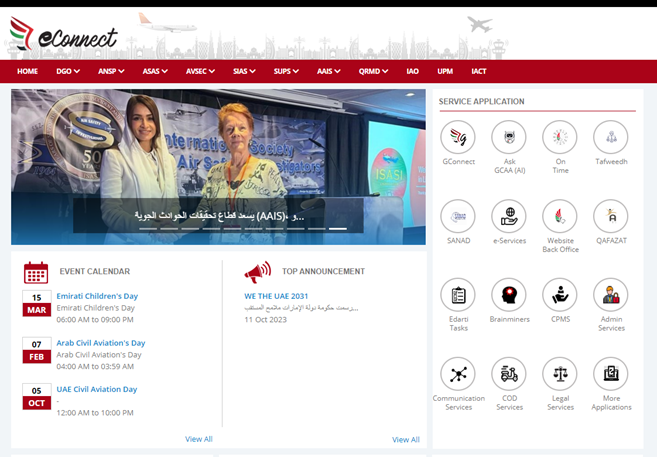
GCAA Employee will open eConnect and click on e-Services
-
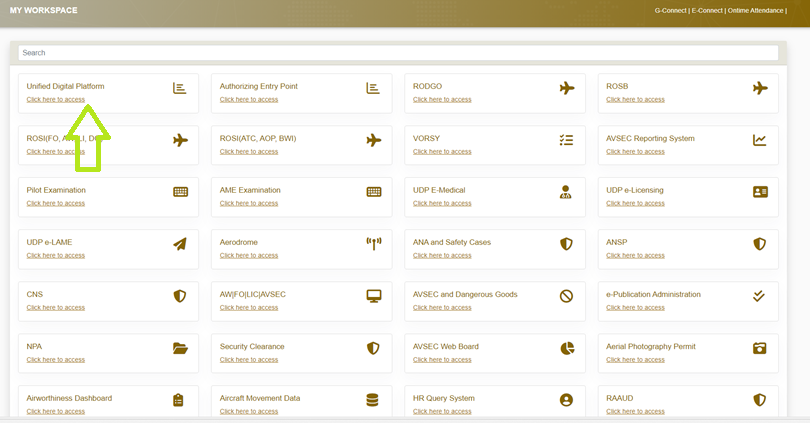
Once you click on e-Service a new page will open containing all the back office GCAA System Links. Click on “Unified Digital Platform” to open UDP Dashboard.
-
Or Simply open your browser and type udp/ to open UDP back office system.
-
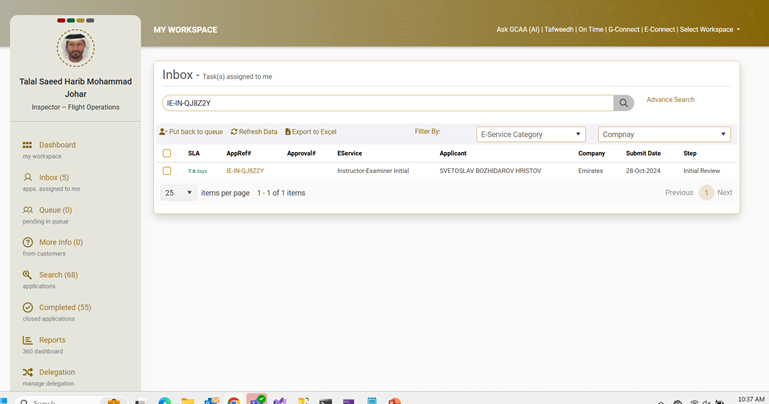
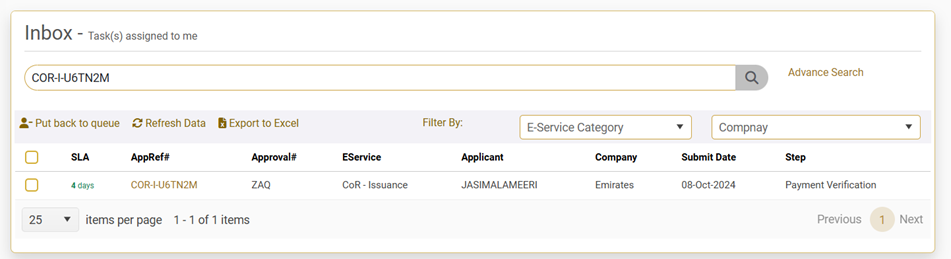
Inspector can also find the application in the Inbox Dashboard .Click on the “Inbox” on the left bar and search the application with Ref No.
-
Click on the application and open the application for further processing.
How to move application from Queue to Inbox -
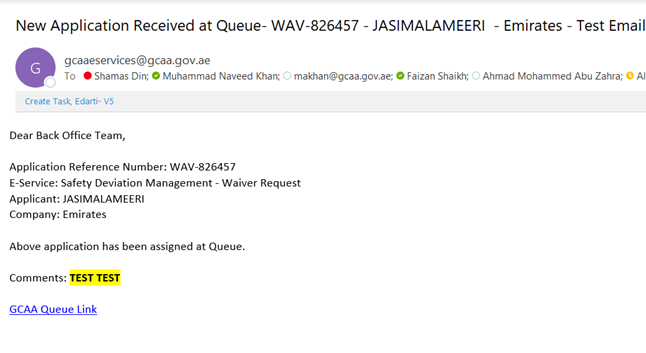
If the application is in Queue , All the inspector linked in the Queue will receive the email notification.
-
If the application is in Queue , All the inspector linked in the Queue will receive the Email and can move the application to Inbox in order to work on the application
-
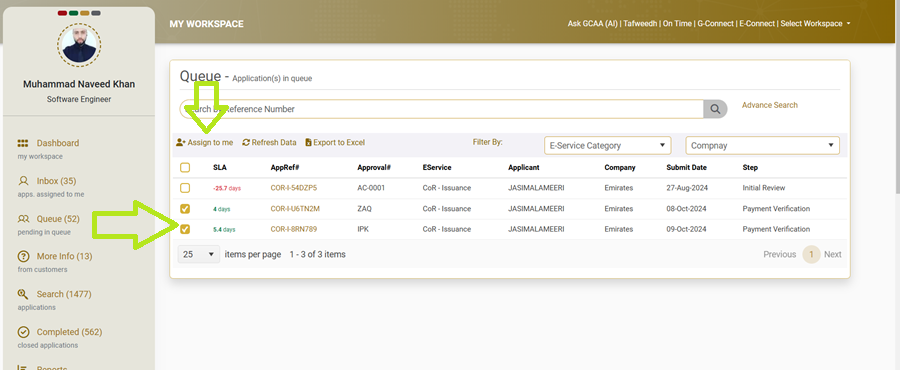
Select the application you want to move and click on “Assign to me”.
-
Once the GCAA Employee click on “Assign to me” the application will be assigned to inspector and will be available in “Inbox” to process.
-
GCAA Employee can also assign the application from the Queue by opening the application from the Queue and click on “Click here” link in the information yellow box.

Delegation -
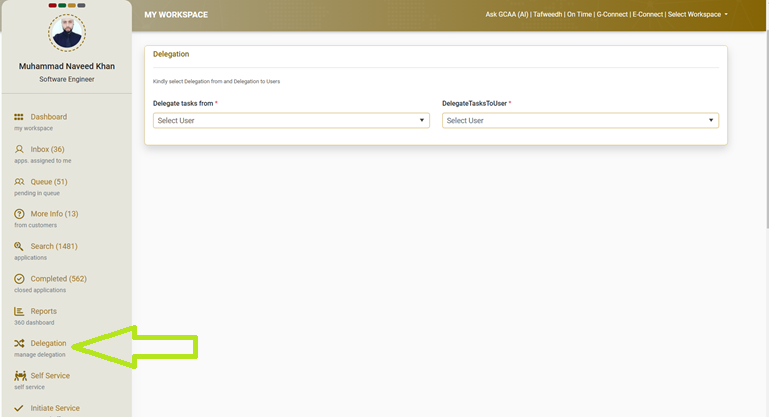
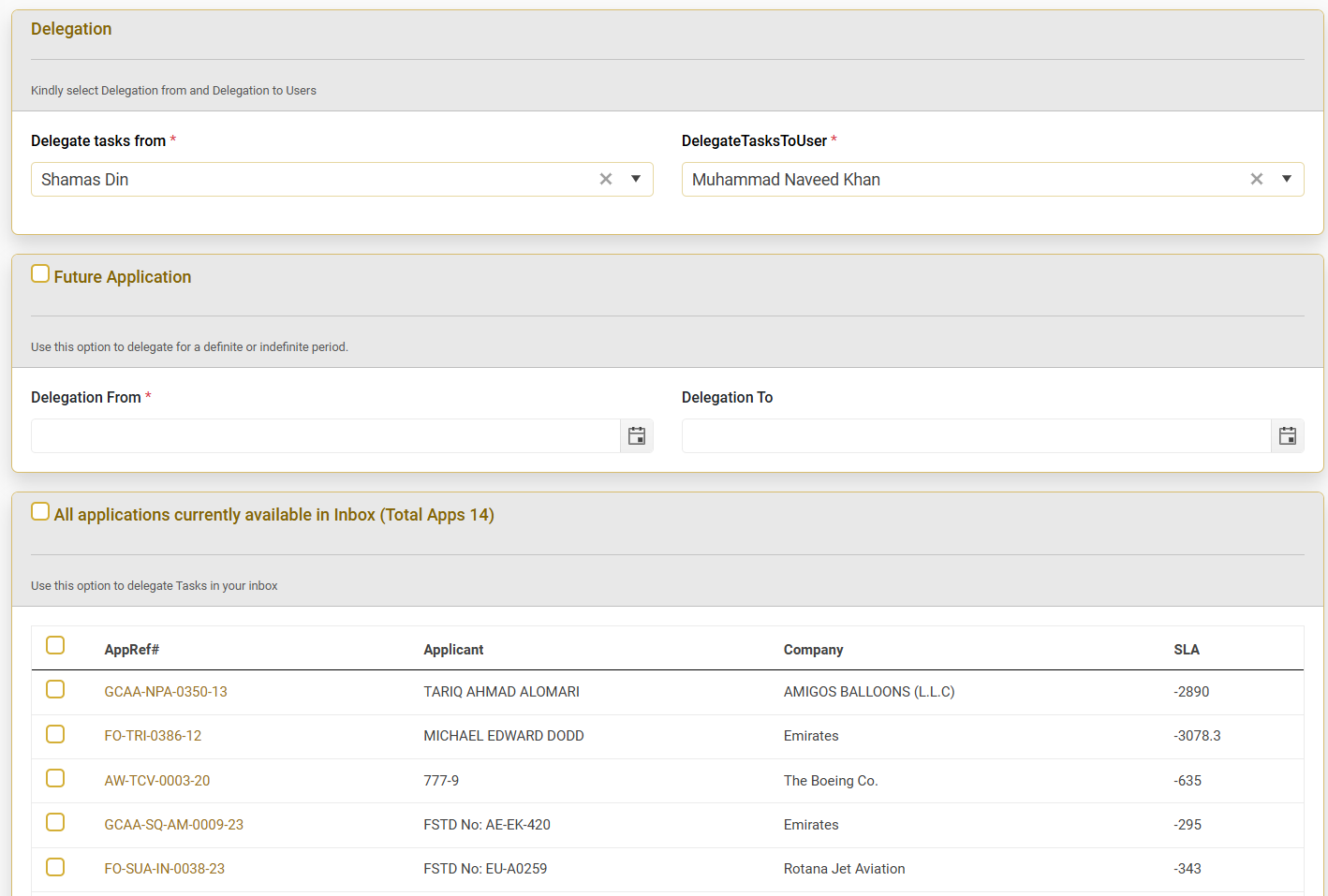
GCAA Employee can delegate the application by clicking on the delegate from the dashboard
-
If Employee want to delegate future application, select From & To Date from Future Application section after selecting Delegated User.

-
In order to Delegate Applicaiton which are already in Inbox, select respective application and delegate accordingly.
Comments/Email/Log History -
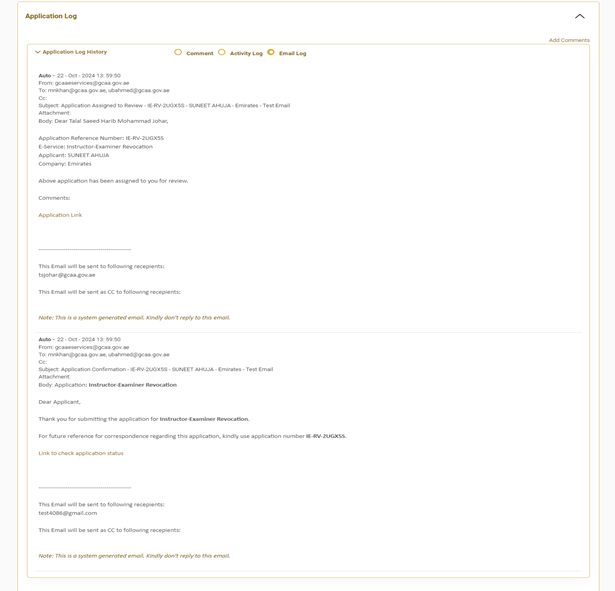
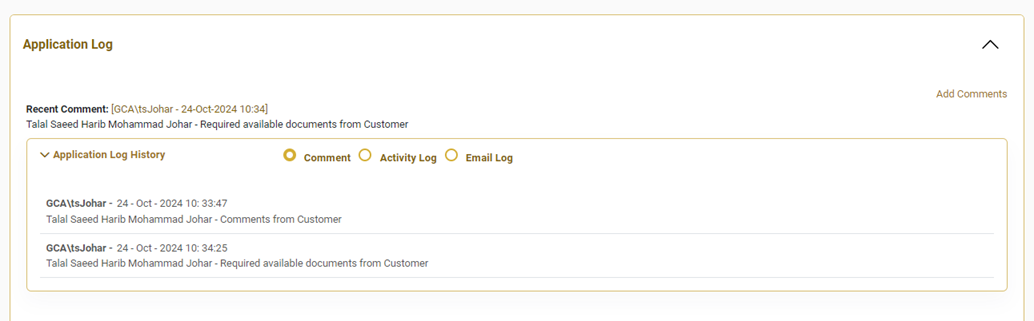
The system maintains a complete Comments History for communication within the application for full traceability
-
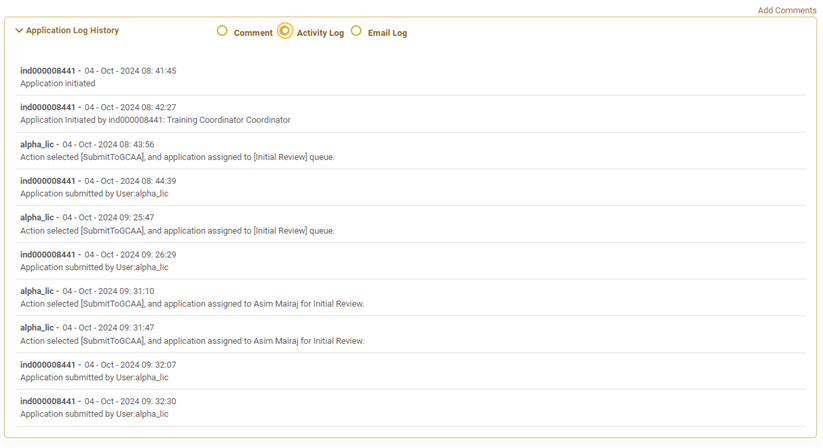
The system maintains a complete log of all actions and updates within the application for full traceability.
-
The system maintains a complete Email of all actions and updates within the application for full traceability.