Introduction to Ask GCAA (AI)
The Ask GCAA (AI) is GCAA’s in-house Artificial Intelligence ecosystem, designed to empower users with a secure, intelligent, and document-driven conversational interface. It combines advanced natural language understanding with the ability to retrieve and process information from GCAA’s internal knowledge base, enabling staff to quickly find answers, streamline workflows, and make data-driven decisions.
This AI system is built on a Large Language Model (LLM) capable of understanding complex queries, providing accurate responses, and assisting with a wide range of tasks—from retrieving policy details to explaining operational procedures.
Key Highlights
- Private & Secure – All GCAA data remains within the organization’s infrastructure, ensuring full compliance with internal security and privacy protocols.
- High-Performance Computing – Computationally intensive processing is handled on a remote, dedicated GPU cluster, enabling rapid responses without compromising on quality.
- Document-Driven – The system is integrated with GCAA’s internal documentation repositories, ensuring responses are based on accurate, up-to-date information.
- Conversational Interface – Users interact with the AI through a simple, intuitive chat interface, making it easy to ask questions in natural language.
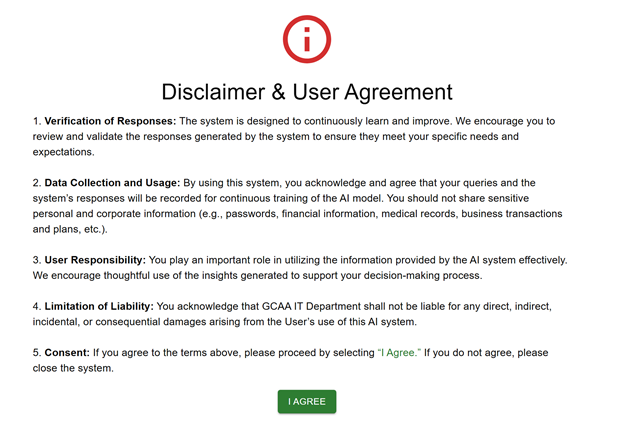
Step 1 – Accept Disclaimer
When you open Ask GCAA (AI), you’ll see the Disclaimer & User Agreement.
Review the terms, then click “I Agree” to continue.
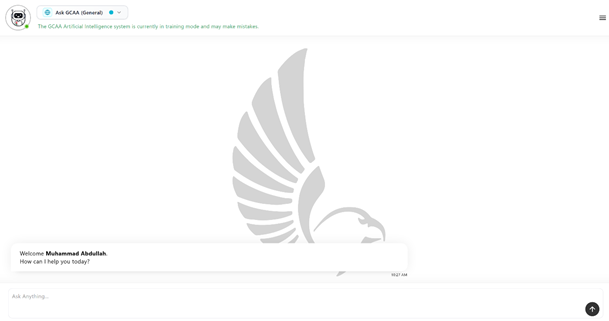
Step 2 – Chat Screen
Type your question in the “Ask Anything…” box and press Enter to get a response.
Step 3 – Choose an Assistant
From the top left corner, click the assistant menu.
Select the assistant that matches your query type (e.g., General, Private, AIP).

Step 4 – Ask Your Question
After selecting an assistant, type your question in the chat box.
You will receive answers relevant to that assistant’s scope.

Step 5 – Chat History
Click the menu in the top right to view your previous chats.
Use the three dots next to a chat to delete it if needed.

Step 6 – Search with Knowledge Base
Use File Search or DeepThink in the query box to search within the assistant’s knowledge base.
Answers will display with a Sources button showing all references and files used.

